Summary
This document shows you how to resolve a SQL 10 error on newly installed MyoVision software due to the SQL Server Service not Running
Before you Begin
- Make sure the Windows account you are logged into has Administrator privileges or you have the Administrator login information.
- Check Administrator Privileges if you are unsure.
- IMPORTANT: Make sure Windows is fully updated before continuing.
- To check if you are fully updated, go to the Microsoft support article here: https://support.microsoft.com/en-us/windows/install-windows-updates-3c5ae7fc-9fb6-9af1-1984-b5e0412c556a
How to resolve an SQL 10 Error due to Service not Running after new MyoVision software installation
1. Confirm the Database Service Status
- If you have a network database see our article Resolving SQL Errors On a Network Database
- Go to Setup > System > Database and check the Status section circled below
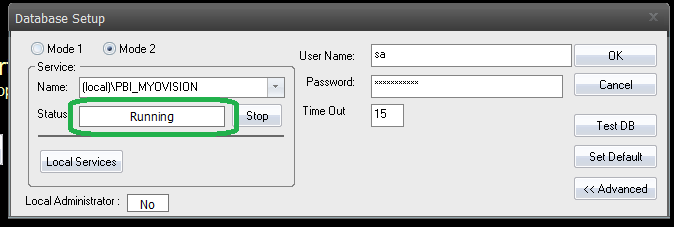
- If the status shows;
- "Not Installed",
- Most likely, SQL was not installed at the same time as MyoVision. Make sure to update Windows and follow the instructions in the Installing SQL support article.
- If a database was previously on the computer (able to perform and review exams), see step 2.
- "Stopped", move to Step 2. Troubleshoot Error code 10
 the software is configured for a network database, which means the database is on a different computer.
- See our article Resolving SQL Errors On a Network Database
- Not sure if you have a network database? Contact our technical support at 1-800-969-6961, option 2 (8:30am - 4:00pm Pacific Time, Monday - Friday) (+1 206-448-3464 International)
- "Not Installed",
 the software is configured for a network database, which means the database is on a different computer.
2. Troubleshoot Error code 10
- If SQL error code 10 is happening after a new install of MyoVision software, then there may be a hard drive incompatibility that can be checked for.
- Open Services
- Click or tap the Search icon on the taskbar and type services. Or press the Windows key, type services, and then press Enter when you see the search results.
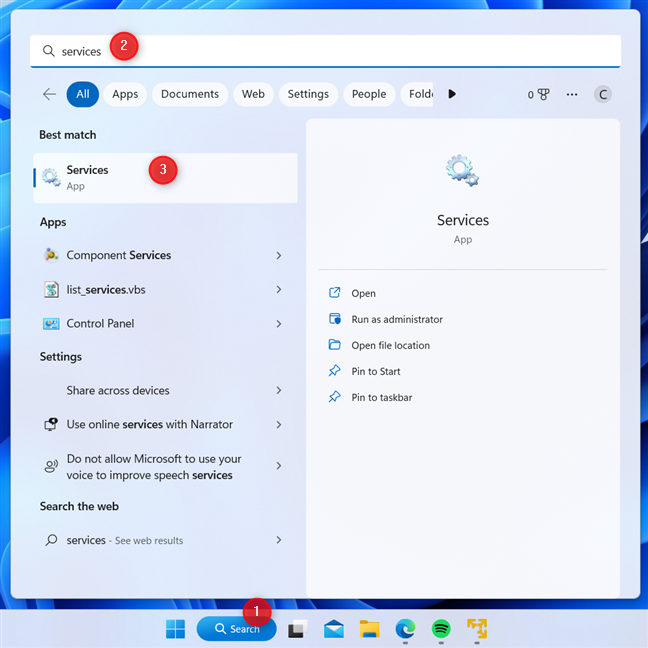
- Click or tap the Search icon on the taskbar and type services. Or press the Windows key, type services, and then press Enter when you see the search results.
- Scroll down in the list until you reach "SQL Server (PBI_MYOVISION)", click on it to select
- Click "Start" on the left side of the list
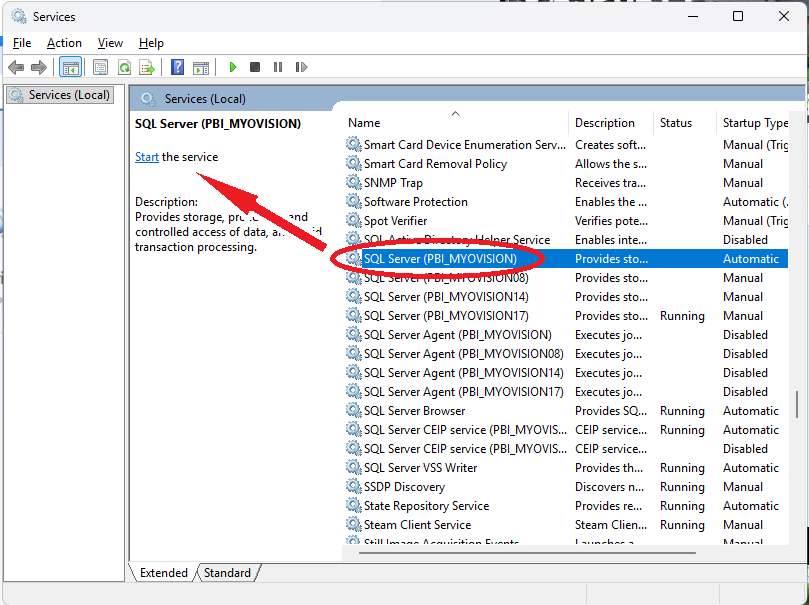
- If you receive Error 1067, similar to the image below, the most likely cause is hard drive incompatibility. Continue to next steps
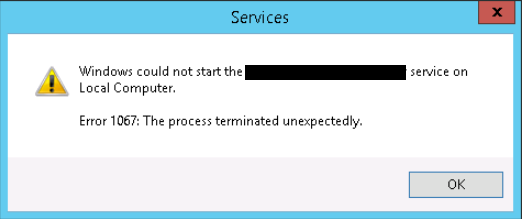
- If there is no error box and the "SQL Server (PBI_MYOVISION)" has the "Running" status, then the issue is resolved and no further steps are required.
- Click "Start" on the left side of the list
- Click "OK", next we will check to see if you can perform the fix on your own or need a MyoVision technician for assistance
- In the "Services" window check for multiple "SQL Server (....)". The words between the parathesis () is dependent on the software it is used for.
- If there is only one "SQL Server (...)" AND it is named "SQL Server (PBI_MYOVISION)" then continue to the next steps
- If there is multiple "SQL Server (...)" or you do not have a service named "SQL Server (PBI_MYOVISION)" then call MyoVision technical support as any further troubleshooting may result in data loss
- Toll Free: 1-800-969-6961, option 2 (8:30am - 4:00pm Pacific Time, Monday - Friday)
- International: +1 206-448-3464, option 2
- Schedule a time for a phone call with support technician: https://myovision.com/schedulesupport
- In the "Services" window check for multiple "SQL Server (....)". The words between the parathesis () is dependent on the software it is used for.
- Open Services
3. Confirm Hard drive sector size incompatibility issue via SQL Error logs
- This step is to confirm what the cause of the issue is, and is not strictly required to perform.
- Open File Explorer (Any folder icon on your Desktop or Taskbar)
- Navigate to;
C:\Program Files\Microsoft SQL Server\MSSQL14.PBI_MYOVISION\MSSQL\Log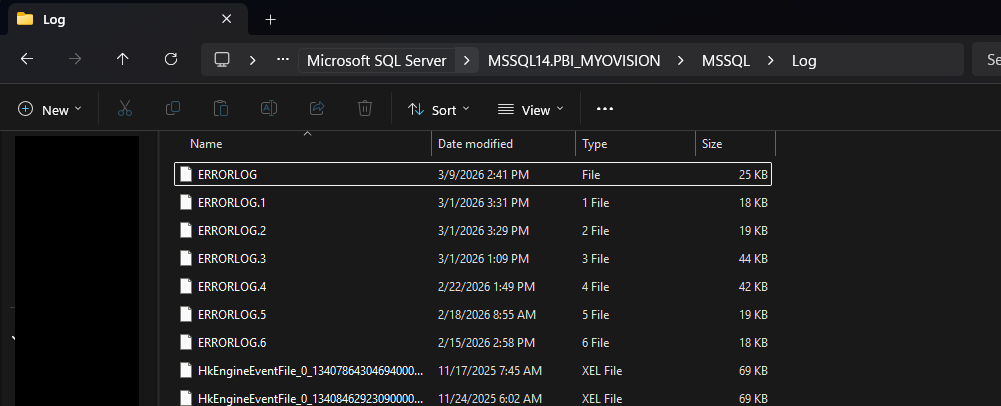
- Navigate to;
- Open the "ERRORLOG" file by double clicking on it
- Choose to open in "Notepad"
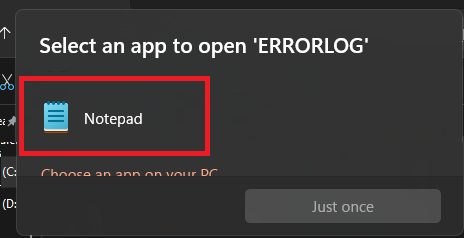
- Choose to open in "Notepad"
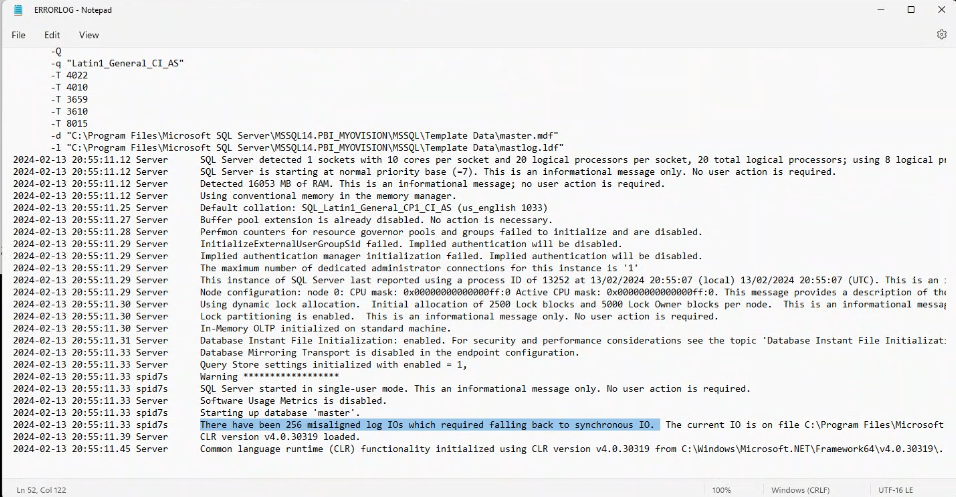
- Scroll to the bottom of the ERRORLOG notepad file
- Look for a line that states "There have been 256 misaligned log IOs which required falling back to synchronous IO...."
- If you see the misaligned log IOs line, then continue to next steps
- If you do not see the misaligned log IOs line, then contact MyoVision technical support
4. Resolve SQL Error due to hard drive sector size incompatibility on a new MyoVision software installation
- IMPORTANT! If you skipped the prior steps, do not continue. Patient data may be lost: The following steps are only for computers that went through the above troubleshooting steps to determine that there is no patient data that may be lost during this process. Perform all steps above to ensure no patient data is lost during the appropriate fix for your SQL Server error.
5. Uninstall SQL Server using Microsoft's support article linked below.
- Skip the "Prepare" steps as there is no data to backup and the other steps are not applicable in this specific case and with our SQL configuration.
6. Use CMD to change the hard drives' listed sector size
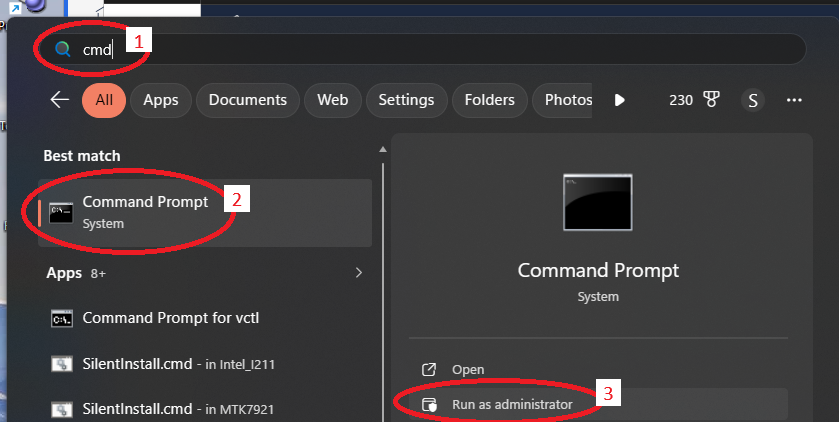
- Open CMD as Administrator
- Click on the Start menu icon, then type "CMD"
- Highlight/Select Command Prompt
- Click "Run as Administrator"
- Enter the following into the black CMD box;
- reg add "HKLM\SYSTEM\CurrentControlSet\Services\stornvme\Parameters\Device" /v "ForcedPhysicalSectorSizeInBytes" /t reg_multi_sz /d "* 4095" /f
- Hit ENTER on your keyboard, the CMD box should have a new line stating; "The operation completed successfully"
- If you received an "ERROR: Access denied" then CMD was not started as administrator. Click the X to close the window then follow the steps above to open CMD as Administrator
- If the operation was completed successfully, it will look similar to the image below;

- Close CMD and all open programs and restart the PC
- Restarting the PC is required for the changes to take effect. Make sure to choose "Restart" as it is different with modern Windows OS than shutting down a PC.
7. Reinstall SQL Server
- Follow the steps in our support article below to install SQL Server. This article should complete the fix for the SQL Server 10 error code - Service not starting due to hard drive incompatibility, and coming back to this article should not be required.
- Install SQL Server 2017
Note: If you are still having trouble getting your MyoVision database to work properly, please feel free to contact our technical support at 1-800-969-6961, option 2 (8:30am - 4:00pm Pacific Time, Monday - Friday) (+1 206-448-3464 International)
Or schedule a support session using our scheduling link; https://myovision.com/schedulesupport