Summary
This document shows you how to pair your SERIES-5 (white label) handheld devices to a computer with a VisionHUB.
Before you begin
- Make sure you have the latest version of the MyoVision software. Download here: https://www.myovision.com/download
- Ensure the VisionHUB is plugged into the computer and have the new device nearby and the power switch in the ON position
- Not sure where the power switch is? See our SERIES-5 First Time Setup guide for device overview
How to replace SERIES-5 device pairing with new device pairing
1. Disconnect device from the computer
- Open the MyoVision software, at the top of the software click Setup > Devices > Pair > Series-5 (or press "control + 5" at the same time on your keyboard).
- Next to the device or devices that are no longer going to be used on that computer click "Disconnect"
- This should change the device status to "Not Paired"
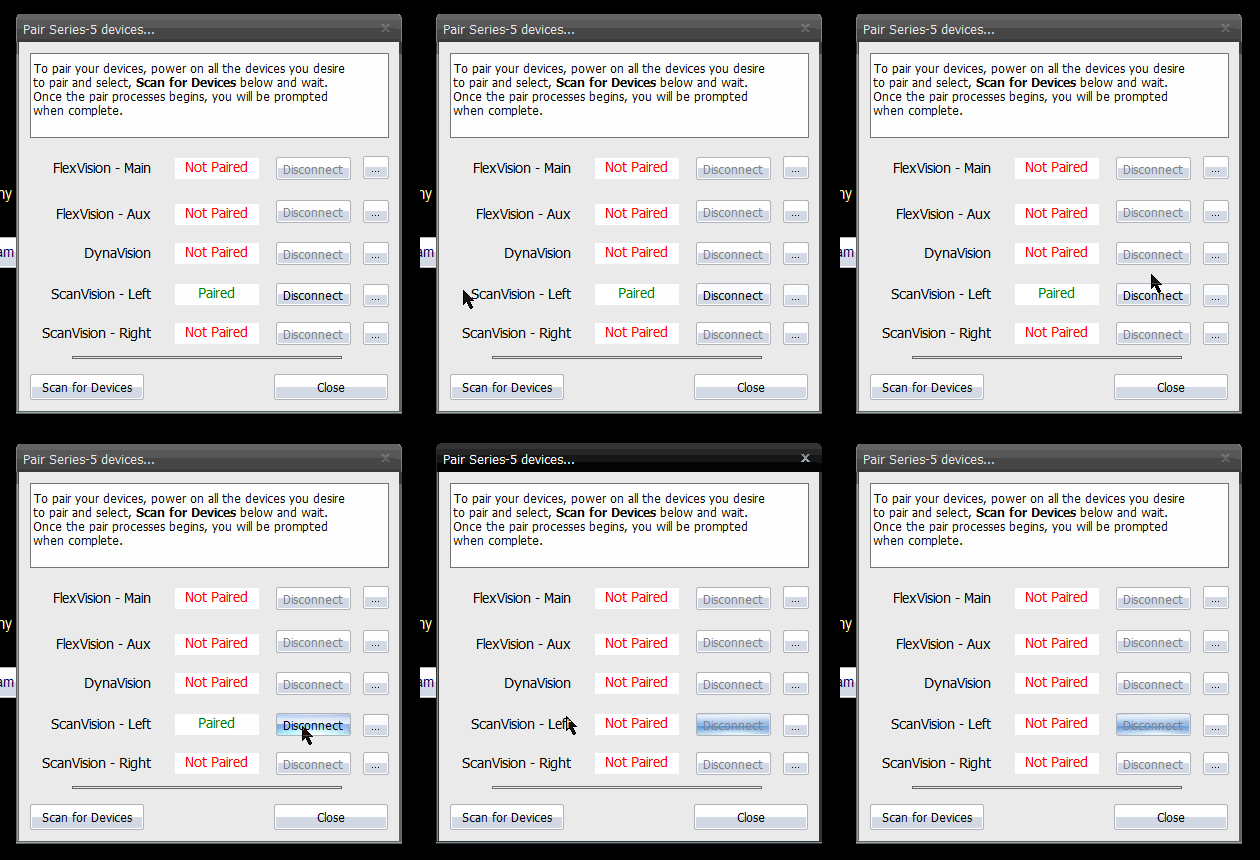
- This should change the device status to "Not Paired"
2. Pair your SERIES-5 devices
- Turn on the new device(s) you want to pair: Turn the Power Switch into the ON position and press the Start Button
- Press "Scan for Devices" in the "Pair Series-5 devices...." window.
- This process can take a few minutes depending on your computer. Your devices will turn off one at a time as they pair.
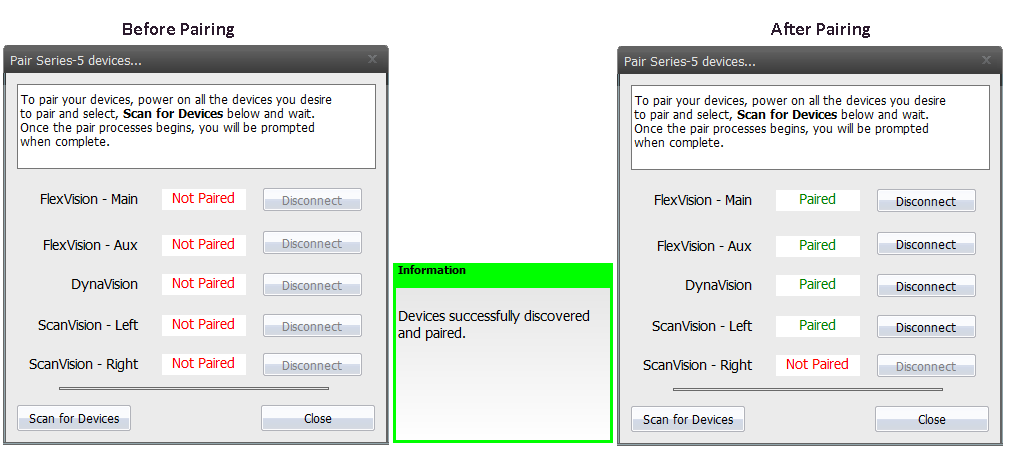
- When the pairing process is complete, a pop-up in the lower right corner will appear and each device will say "Paired" next to it.
- The "Paired" devices will match what devices you own.
- If not all of the expected devices paired, turn on all the devices again by clicking the start button and click "Scan for Devices." Below is an example of a DynaROM system with a Single ScanVision.
Note: The SERIES-5 handheld devices are registered to your computer's user account, not the VisionHUB. If you change user accounts or move to a different computer you will need to go through the removal and pairing process again.